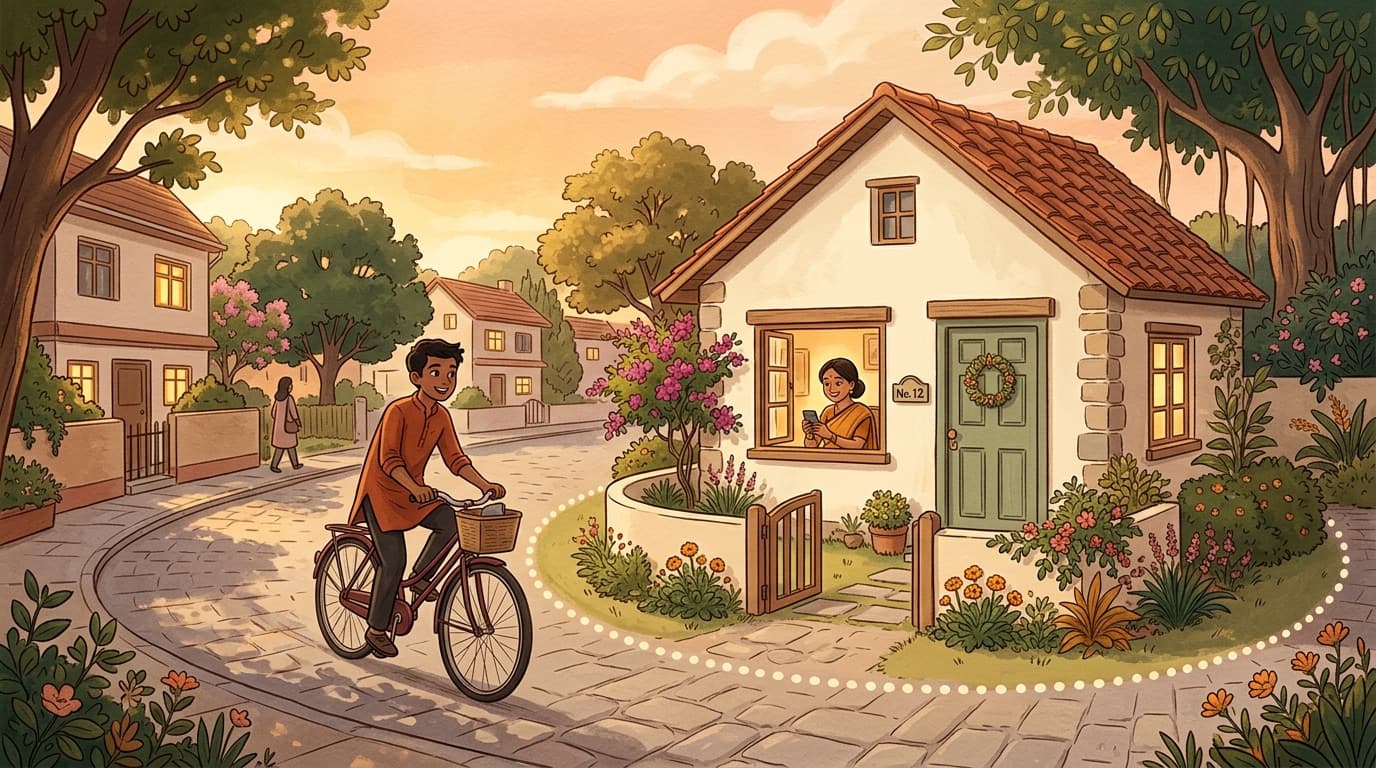
To get notified when someone arrives at or leaves a place, they first need to be sharing their location with you. Then, on iPhone, open Find My → People → [person] → Notify Me → Add Location Alert. On Android, add a location notification in Google Maps or the Find Hub app. For a child’s Android phone, use family places in Google Family Link, and for a whole family on one map, use safe places in a family locator app.
Apple and Google both tell the person when you set an alert on them, which is how it should be. Below: exact steps for each option, how big to make the circle, and what to check when alerts are late or missing.
How arrival and departure alerts work
Every option in this guide works the same way underneath. You draw an invisible circle around a place (apps call it a place alert, a location notification or a safe place) and the other person’s phone keeps reporting where it is. When a reported position moves from outside the circle to inside, you get an “arrived” alert; inside to outside is “left”.
Two things follow. First, an alert can only be as fresh as the location behind it: a phone that’s switched off, offline or held back by a battery saver can’t tell anyone it arrived. Second, a phone’s position is an estimate. GPS.gov says GPS-enabled smartphones are typically accurate to within 4.9 m (16 ft) under open sky, but accuracy worsens near buildings, bridges and trees, and indoors. Android’s geofencing guide tells developers to “assume that Wi-Fi location accuracy is about 50 meters”, and says that without Wi-Fi, in rural areas for example, the range “can be as large as several hundred meters to several kilometers.”
Arrival alert options compared
Here’s what each option can do at the time of writing (October 2026).
| Option | Best for | Alerts | Limits |
|---|---|---|---|
| Apple Find My | iPhone family and friends | Arrives, leaves, or “Is Not At” a place at set times; only once or every time | Up to 25; recurring alerts need approval |
| Google Maps | Anyone sharing with your Google account | Every time they arrive; every time they depart | Up to 5 per person; not for link shares or under-13s |
| Find Hub | Android phones | Arrives and/or leaves, with an adjustable radius | Not if their phone is offline, location is off, or they’re under 13 |
| Google Family Link | Parents of kids with Android phones | Arrives and Leaves for Home, School or custom places | Child’s phone can’t be an iPhone |
| Life360 | Families already using Life360 | Place alerts | Free plan: 2; Silver ($9.99/mo): 5 places; Gold and Platinum: unlimited (US prices) |
| GPSforFamily | A family circle on one shared map | Arrival and departure alerts for safe places, 50–1,000 m radius | Free, no subscriptions; Android now, iPhone coming soon |
Get notified when someone arrives or leaves on iPhone (Find My)
This works with anyone who shares their location with you in Find My, whether through Family Sharing or one-to-one.
- Open Find My, tap People and choose the person.
- Under Notify Me, tap Add Location Alert.
- Choose what you want to know: when they arrive, when they leave, or when “[name] Is Not At” a place during set times and days.
- Pick the location. A larger radius means you’re told when they’re near the place rather than at it.
- Choose to be notified only once or every time, and save.
The rules, from Apple’s iPhone User Guide:
- Your friend gets an alert once you set a notification.
- “If you set a recurring notification, your friend must approve it before it’s set.” They’re asked the first time they arrive at or leave the place.
- “Is Not At” alerts always need your friend’s approval.
- “You can create up to 25 Notify Me notifications,” and recurring ones only work for friends who have two-factor authentication turned on.
When the traveller sends it: Check In and Share ETA
Sometimes it’s better for the person travelling to send the alert. If you both have iOS 17 or later, Check In in Messages does exactly that. Go to Messages → [conversation] → + → More → Check In → Edit and choose When I Arrive (set the destination, how you’re travelling and extra time) or After a timer. It completes automatically when you arrive and notifies your friend if your iPhone stops making progress or doesn’t arrive. It doesn’t share your location continuously, only if there’s an unexpected delay and you don’t respond.
For regular trips, Apple Maps can share your ETA automatically: add a contact to a pinned place such as Home, and Maps shares your ETA each time you navigate there. People on Android phones receive it as a text.
Get arrival alerts on Android: Google Maps and Find Hub
Google’s alerts work for anyone who shares their real-time location with your Google account, including an iPhone user sharing through Google Maps. They don’t work for link shares. If the other person isn’t sharing yet, they can start in Google Maps on either phone under profile picture → Location sharing → New share, choosing Until you turn this off for ongoing sharing.
In Google Maps
- Open Google Maps, tap your profile picture → Location sharing and choose a person who shares with you.
- Under Notifications, add a place.
- Choose Every time they arrive, Every time they depart, or both.
Google allows “up to 5 Location Sharing notifications for each person who shares their location with you.” The person sharing receives an email, plus a push notification if they have notifications on. These alerts don’t work for link sharing, certain accounts, or sharers under 13 (or the applicable age where they live).
In Find Hub
Find Hub, the app Google renamed from Find My Device in May 2025, added location notifications in May 2026.
- Open Find Hub and go to People → [person] → Get location notifications.
- Tap Add a location notification and choose Arrives, Leaves, or both.
- Adjust the radius and save.
Again, the person sharing gets an email. Google says notifications won’t work if they’re offline, have location turned off, or are under 13.
School arrival alerts for a child’s Android phone (Family Link)
Google Maps and Find Hub alerts don’t work for under-13s, and Google says children under 13 (or the local age) “can only share their real-time location with their parents”. For younger kids with Android phones, Google Family Link is the built-in route.
- Parent’s device: Android 6.0 or later, an iPhone or iPad on iOS 16 or later, or a Chromebook.
- Child’s device: Android 6.0 or later, a Chromebook, or a compatible Fitbit. Google is explicit that “iPhones, iPads, and computers other than Chromebooks can’t be supervised with Family Link.”
- In Family Link, go to Location → Set up location.
- Add family places: Home, School or a custom place.
- For each place, turn on Arrives and Leaves notifications.
- On the child’s phone, make sure Google Location Accuracy is on. On Android 12 and later it’s at Settings → Location → Location Services → Location Accuracy → Improve Location Accuracy. Google says place alerts need it and switch off if it’s disabled.
The child’s location won’t show if their phone is off, offline or “hasn’t been used recently”, and only their most actively used device appears. If your child has an iPhone instead, use Family Sharing and the Find My steps above. For the bigger picture, see our guide on how to track your child’s phone location openly.
Safe places for the whole family
Built-in alerts are set up person by person: up to 5 per person in Google Maps, 25 in total in Find My. If you want the same handful of places (home, school, work, grandparents’) to work for everyone, a family locator app is simpler. You create a place once, and anyone in the family group who arrives or leaves triggers an alert.
In GPSforFamily these are safe places (safe zones in the app). On Android, go to More → Add a safe zone, name it, pick a type, and set the radius anywhere from 50 m to 1,000 m; the default is 200 m. The centre starts at your current location, so the easiest time to add Home is while you’re at home. Safe places are checked on our server against each location update, and an arrival or departure appears in the circle’s Alerts feed and as a push notification such as “Sarah arrived at School”. Phones send updates as they move, roughly every 25 m, in small batches, and alerts are deleted automatically after 90 days.
Everyone in the circle sees the same places and the same alerts, so nothing is set up behind anyone’s back. The app is free with no ads, on Android now with the iPhone app coming soon. If you’re weighing other apps, Life360’s free plan lists 2 place alerts at the time of writing, and our guide to the best free family locator apps compares more options.
How big should the radius be?
The radius is the setting that most affects whether alerts feel reliable. Too small, and you get missed or doubled alerts as the phone’s estimated position wobbles across the edge. Too big, and “arrived” fires when they’re only nearby; Apple puts it plainly, saying a larger radius notifies you when they’re near the place rather than at it.
Two facts from Android’s geofencing guide anchor the choice:
- “For best results, the minimum radius of the geofence should be set between 100 - 150 meters.”
- Wi-Fi location is accurate to about 50 m, and on most devices the built-in place-monitoring service “uses only network location for geofence triggering”, meaning Wi-Fi and mobile networks rather than GPS.
Our app defaults to 200 m, and Apple’s own developer sample code for watching places also uses a 200 m radius. Here are starting points we suggest. They’re rules of thumb, not guarantees, so test each place once and adjust.
| Place | Suggested starting radius | Why |
|---|---|---|
| House in a town or suburb | 150–200 m | Clears Android’s 100–150 m minimum and Wi-Fi’s ~50 m error |
| Flat in a dense city centre | 200–250 m | Tall buildings block and reflect satellite signals |
| School or college campus | 200–400 m, covering the whole grounds | Drop-off points and sports fields can be far from the main building |
| Workplace or business park | 200–300 m | Car parks and side entrances sit outside a tight circle |
| Grandparents’ house in the countryside | 300–500 m | With little Wi-Fi nearby, location can be off by hundreds of metres |
| Sports ground, park or stadium | 300–1,000 m | Big sites; centre the circle on the middle, not the gate |
- Centre the circle on the middle of the place, not the front gate or the road outside.
- Avoid overlapping circles, such as home and a school across the street. The phone can bounce between them.
- Do one real test: walk or drive past the edge and back. Tell the family first so the alerts aren’t a surprise.
Why arrival alerts are late, missing or wrong
The cause is nearly always on the other person’s phone, not yours. Work through these in order.
No alert at all
- Sharing stopped. A timed Google share may have ended, link shares don’t support alerts, or the person paused sharing. Check that they still appear on your map with a recent time.
- The alert wasn’t approved. Recurring Find My alerts wait for your friend’s approval the first time they arrive or leave, and need two-factor authentication on their account.
- Their phone was offline or location was off. Google says Find Hub notifications won’t work in either case. In Family Link, place alerts switch off if Location Accuracy is turned off on the child’s phone.
- The battery ran down. Our app posts a low-battery alert when a phone drops to 15% or below and isn’t charging, which can explain a missing arrival later in the day.
- Battery savers. Low Power Mode on iPhone turns off Background App Refresh. On Android, “Restricted” battery usage “fully prevents an app from running in the background”, and according to dontkillmyapp.com, Samsung puts apps back to sleep after a few days unless you turn off Put unused apps to sleep.
- Wi-Fi switched off. Android’s geofencing guide warns: “If Wi-Fi is turned off, your application might never get geofence alerts.” Leave Wi-Fi switched on.
- The phone restarted. Apple’s developer documentation notes that an app’s place monitoring “can only occur after the user unlocks the device after a reboot.”
- The app was put to sleep. On Android 13 and later, an app left unused for a few months can have its permissions reset unless Pause app activity if unused is off. That’s common on a child’s phone that rarely opens the app.
The alert came late
Some delay is built in. Android’s documentation says geofence alerts usually arrive in under 2 minutes, around 2–3 minutes when background limits apply, and up to 6 minutes if the phone has been stationary. Since Android 8.0, a background app “can receive location updates only a few times each hour”; our app runs a foreground location service on Android for that reason, which is why it shows a persistent notification. On iPhone, Apple notes that locating all visible satellites “can take several minutes”, and the phone uses Wi-Fi or mobile networks until then.
Wrong or repeated alerts
Arrive, leave, arrive usually means the circle is smaller than the location error, so the estimated position drifts across the edge. It’s most common indoors and among tall buildings, where GPS.gov says reflected signals (“multipath”) degrade accuracy. Go up to at least 150–200 m.
Alerts instead of map-checking: a calmer routine
Arrival alerts work best when they replace checking the map. Instead of opening the app every twenty minutes to see whether your teen has left practice, you get one quiet notification when they do, and they aren’t being watched minute by minute.
- Pick two to four places that matter. Home and school, or your parents’ house. More alerts quickly become noise.
- Agree on them together. Say which places have alerts and why. Apple and Google tell the person anyway; hearing it from you first builds trust.
- Know what alerts can’t do. Arrive and leave alerts can’t tell you someone didn’t turn up. On iPhone, Find My’s scheduled “Is Not At” alert (which the other person must approve) and Check In cover that. The Google options and our app only alert on arrivals and departures, so for “not at school by nine” a quick message is still the answer.
For grandparents, a single alert when they get home from the shops or the doctor’s can replace a lot of anxious phone calls. See our guide to keeping track of elderly parents’ location.
Frequently asked questions
Can I get a notification when someone leaves a location on iPhone?
Yes. In Find My, go to People, choose the person, then Notify Me and Add Location Alert, and choose to be told when they leave a location. You can be notified only once or every time; recurring alerts need the other person’s approval, and you can have up to 25 Notify Me notifications.
Does the other person know I set a location alert?
Yes. Apple’s Find My sends your friend an alert when you set a notification, and recurring or scheduled alerts need their approval. Google emails the person who is sharing when you add a location notification in Google Maps or Find Hub. In GPSforFamily, safe places and their alerts are shared with the whole circle.
Can Android users get arrival alerts for an iPhone user?
Yes, through Google rather than Apple. The iPhone user shares their real-time location from Google Maps with the Android user’s Google account, and the Android user adds a notification in Google Maps or Find Hub. It won’t work for link shares or for sharers under 13.
Why didn’t I get an arrival alert?
Usually the other phone wasn’t reporting its location: it was offline, location or Wi-Fi was off, a battery saver held it back, or sharing had stopped. A radius that is too small can also miss arrivals. Android’s developer documentation says alerts normally arrive within about 2 minutes but can take up to 6 if the phone has been still.
How big should the alert radius around a school be?
Make the circle cover the whole school grounds, which usually means starting somewhere between 200 and 400 metres. Google’s Android guidance recommends a minimum of 100–150 metres because Wi-Fi-based location is only accurate to about 50 metres. Test it with one real trip and adjust.
Are place alerts free on Life360?
Partly. At the time of writing (October 2026), Life360’s US plans page lists 2 place alerts on the free plan, 5 places on Silver ($9.99 a month) and unlimited places on Gold and Platinum. If you only need a few places, compare that with the built-in options in Find My, Google Maps, Find Hub and Family Link, or GPSforFamily’s free safe places.
Sources
- Apple iPhone User Guide — Get notified when friends change their location
- Apple Support — Share your location with friends and family in Find My
- Apple iPhone User Guide — Use Check In in Messages
- Apple iPhone User Guide — Share your ETA in Maps
- Apple Support — About privacy and Location Services
- Apple Support — Use Low Power Mode
- Apple Developer — Monitoring the user’s proximity to geographic regions
- Google Maps Help — Location Sharing notifications
- Google Maps Help — Share your real-time location
- Android Help — Get location notifications with Find Hub
- 9to5Google — Google’s Find My Device is now Find Hub (May 2025)
- 9to5Google — Find Hub adds location notifications (May 2026)
- Google For Families Help — Find your child’s location with Family Link
- Google For Families Help — Family Link device requirements
- Google For Families Help — Children’s location sharing
- Android Help — Precise location and Location Accuracy
- Android Developers — Create and monitor geofences
- Android Developers — Background location limits
- Android Developers — Background optimizations
- Android Developers — App hibernation
- Don’t Kill My App — Samsung
- GPS.gov — GPS accuracy
- Life360 — Plans and pricing (US)